Invest, withdraw, rebalance
Key Takeaways
- Invest more on the fund page, or Invest cash on the Overview, opens the dialog
- The preview lists every buy and sell order before anything is sent
- Withdrawing sells holdings in proportion; the cash lands after two days
- Rebalance and recurring buys are in the fund's action menu
Investing
- Open the fund and press Invest more (or Start investing on a fresh fund).
- Enter an amount. Cash available shows the maximum. Press Preview.
- Review the list of orders: each row is a buy of one stock with the dollar amount and estimated shares. Press Submit N orders.
- Wait for Orders submitted. Most fill within minutes during market hours. Track them under In Progress on the Overview.
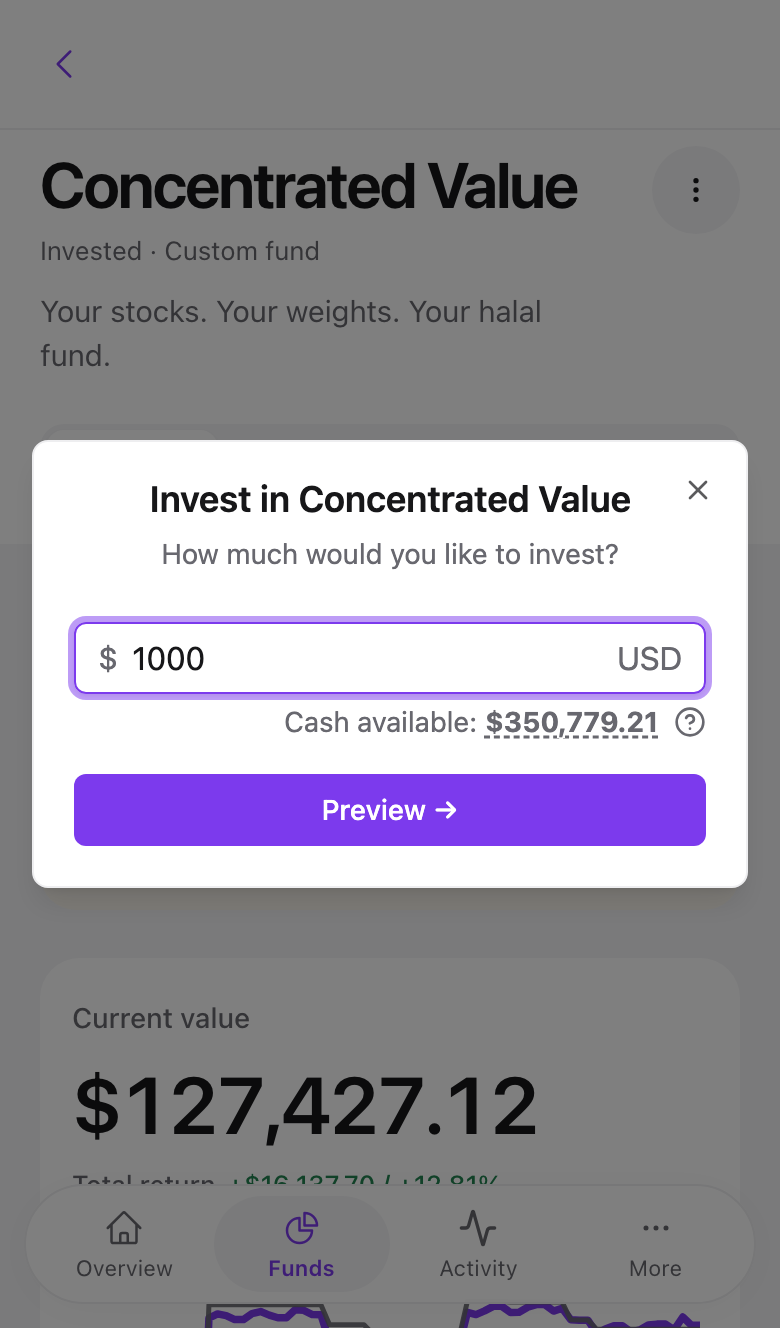
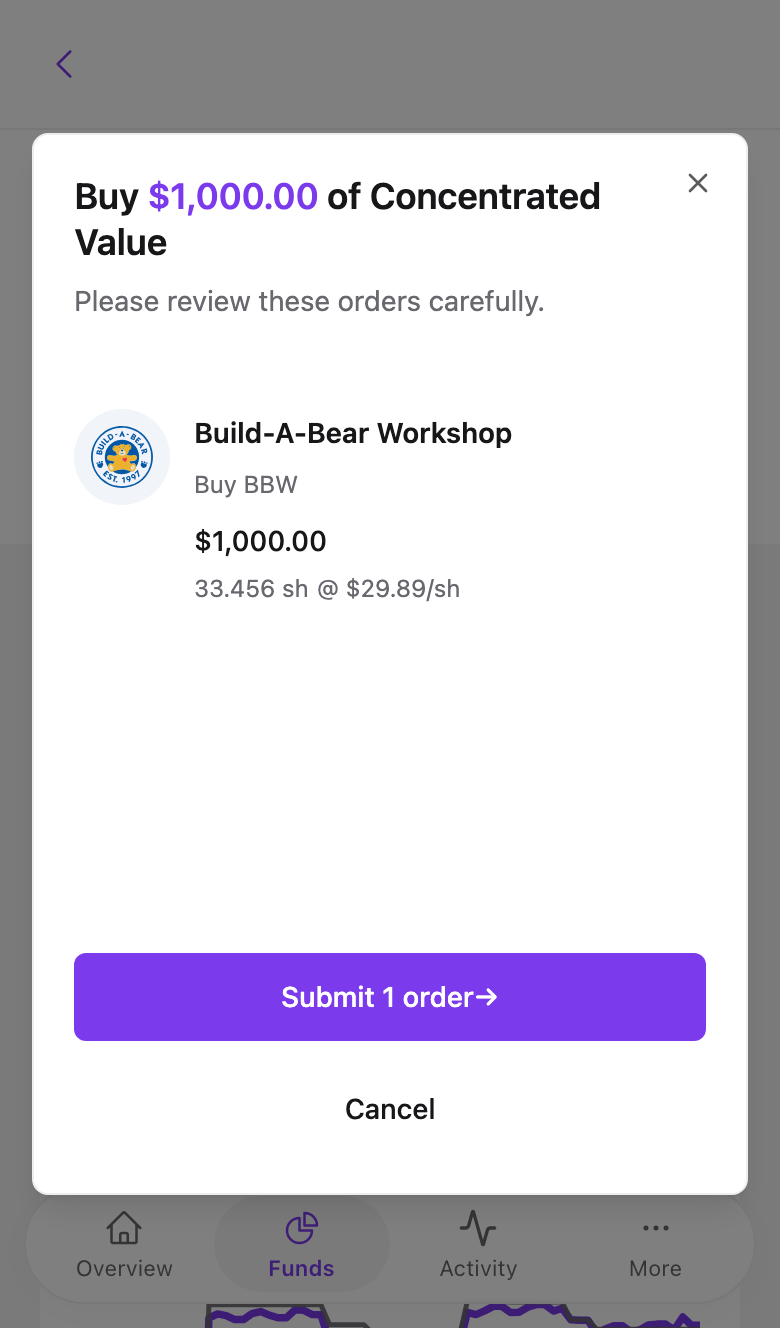
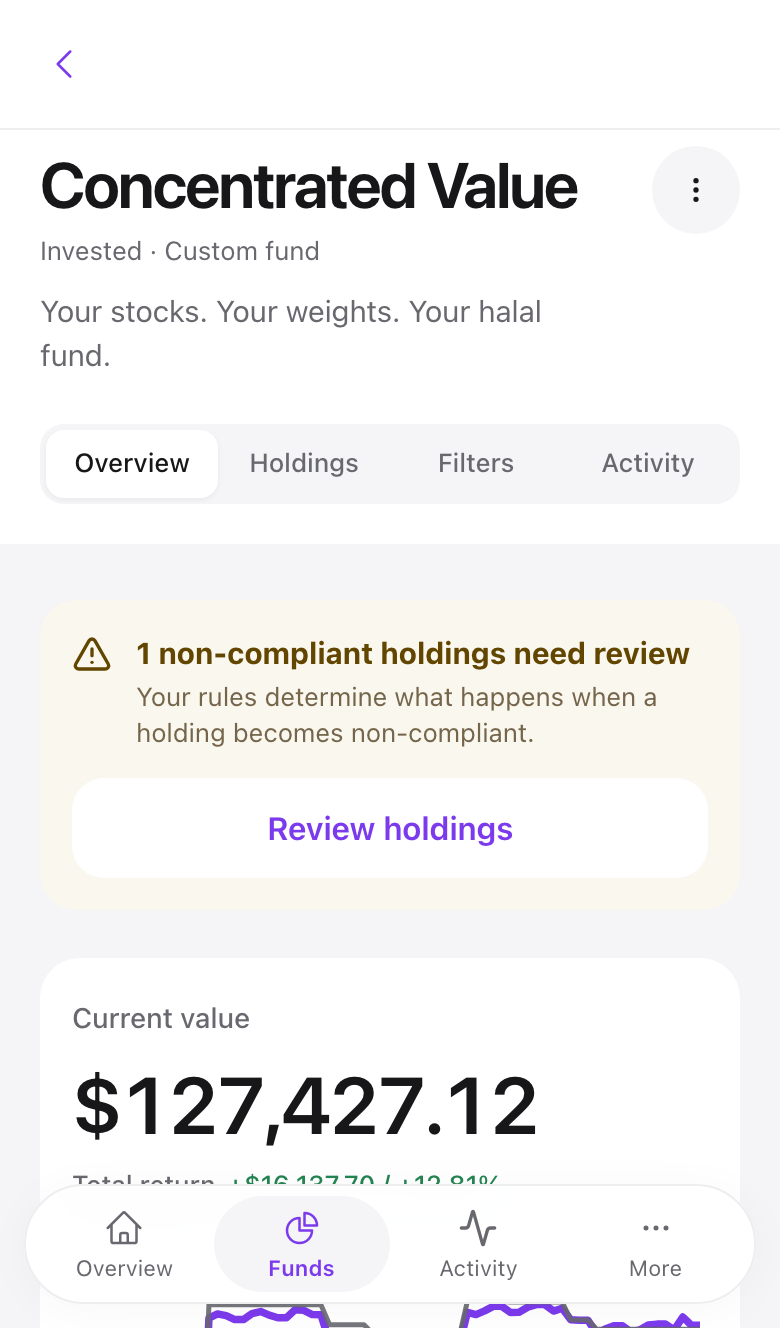
Swipe to see all 3 screens
Investing needs a Standard or Pro plan. See Plans and billing.
Withdrawing
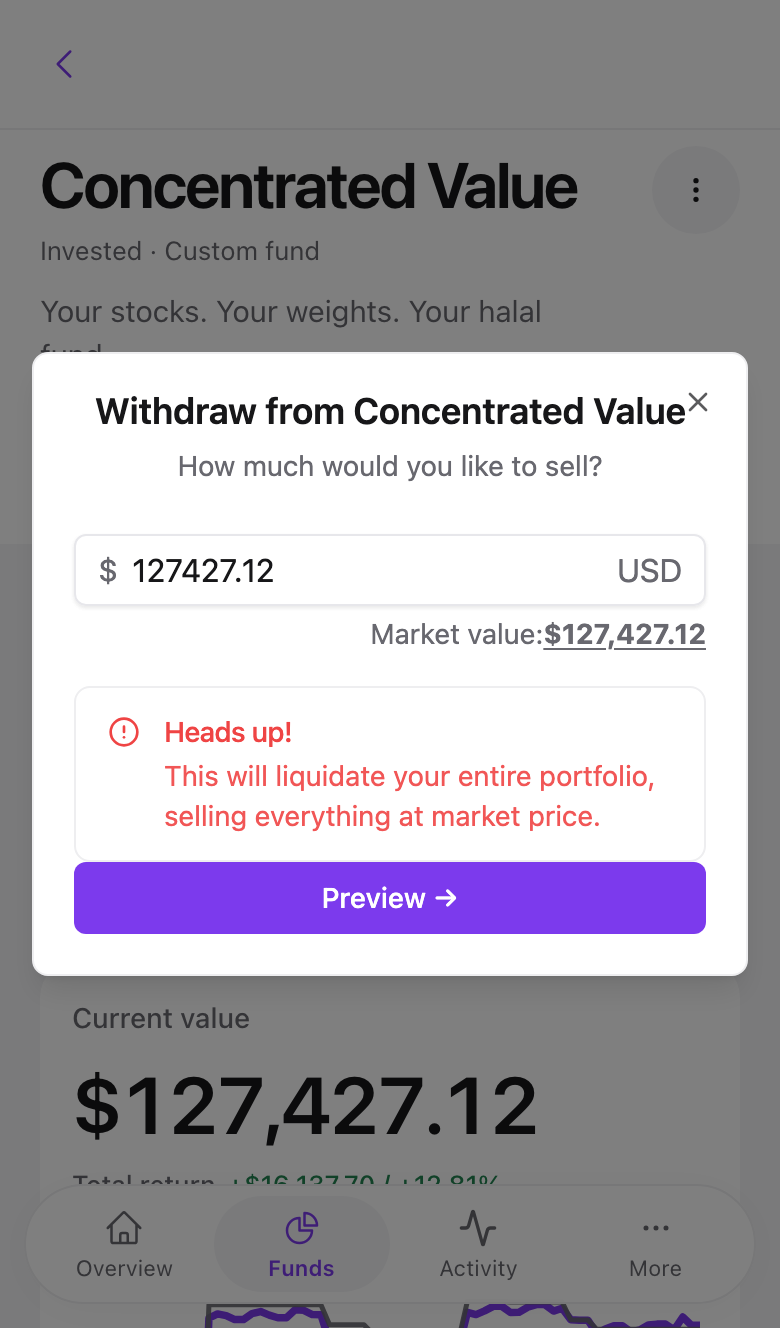
Open the fund's action menu, the three dots next to Invest more, and choose Withdraw. Enter how much to sell. If the amount would close positions entirely, a red Heads up notice says so. Preview and submit as above. Proceeds settle as cash in two business days, then leave through Alpaca.
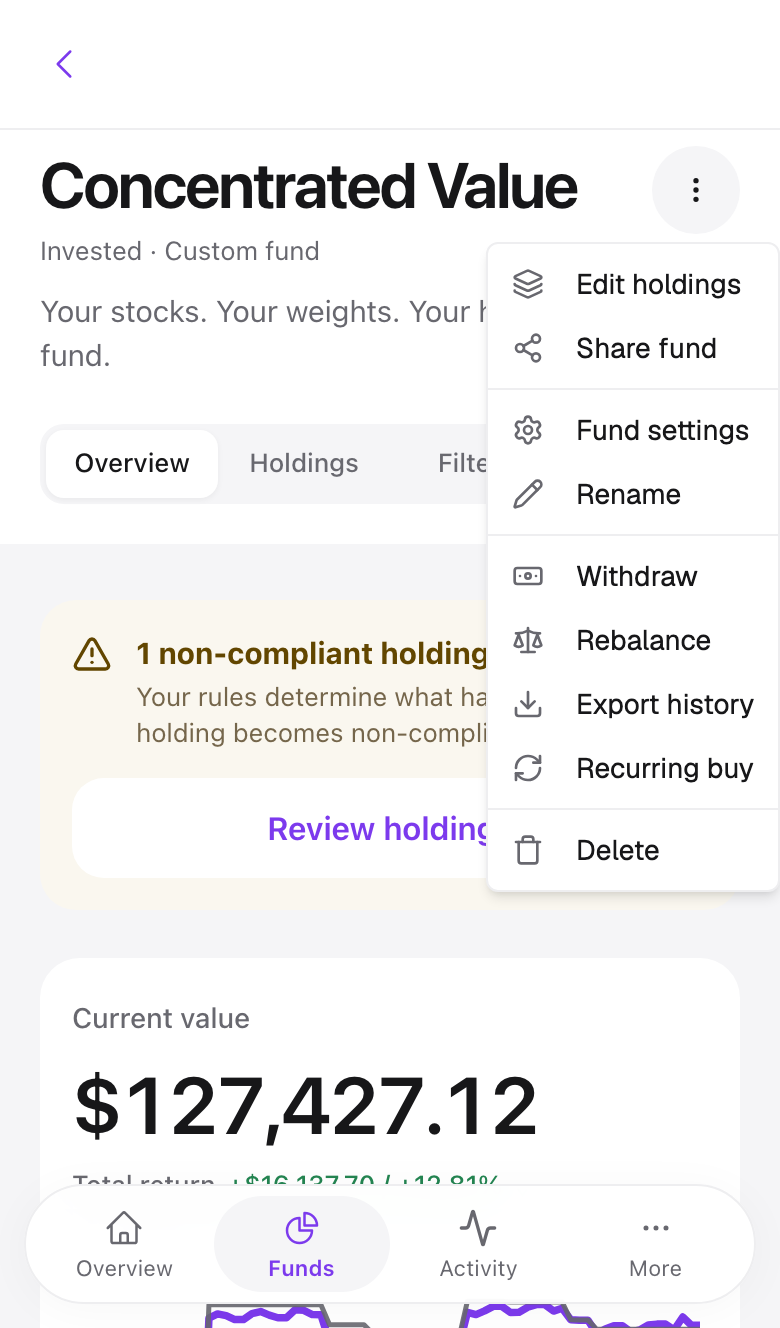
Swipe to see all 2 screens
Rebalancing
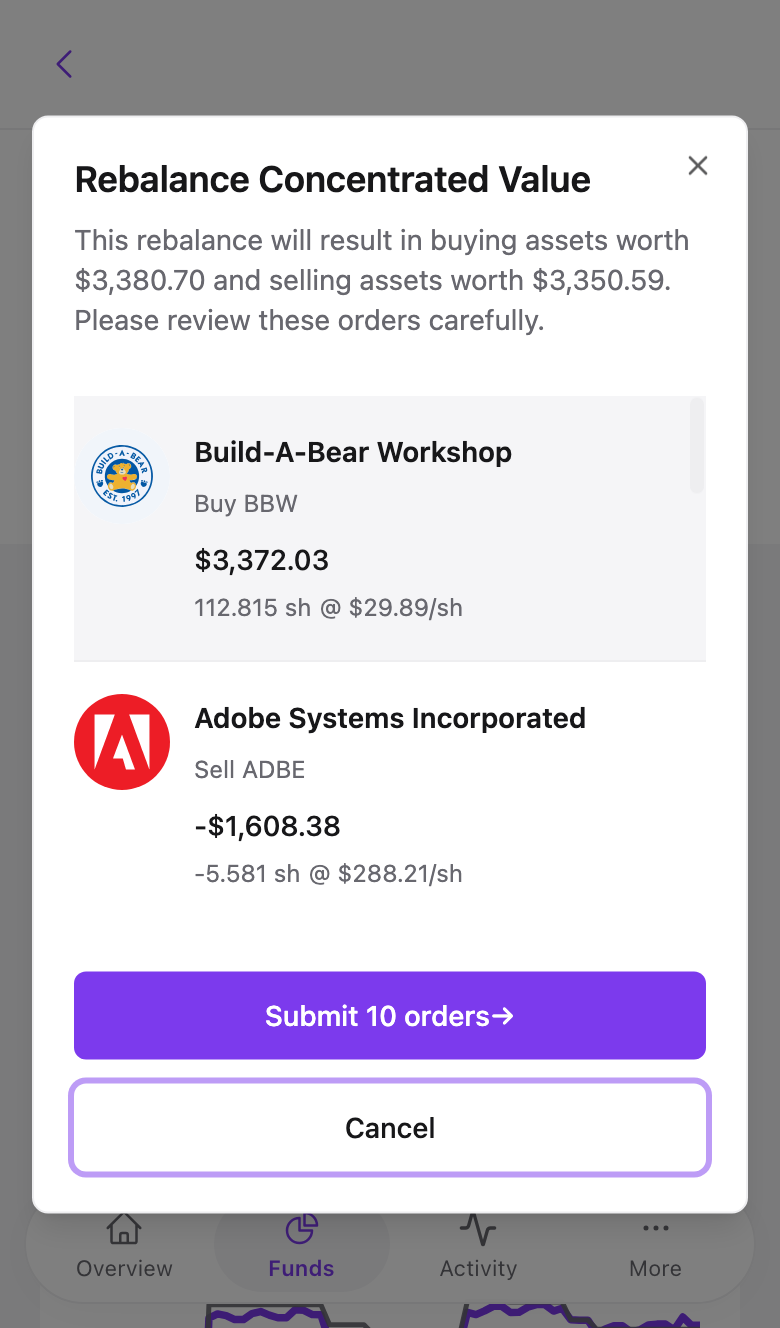
Over time some holdings grow faster than others and drift from their target weights. Rebalance in the action menu sells the overweight ones and buys the underweight ones to restore the targets. A confirmation asks Rebalance to place trades? before the preview. If nothing has drifted, the preview says no orders are needed.
Funds with Auto-rebalance on changes enabled in Expert mode do this on their own whenever the source fund updates.
Recurring buys
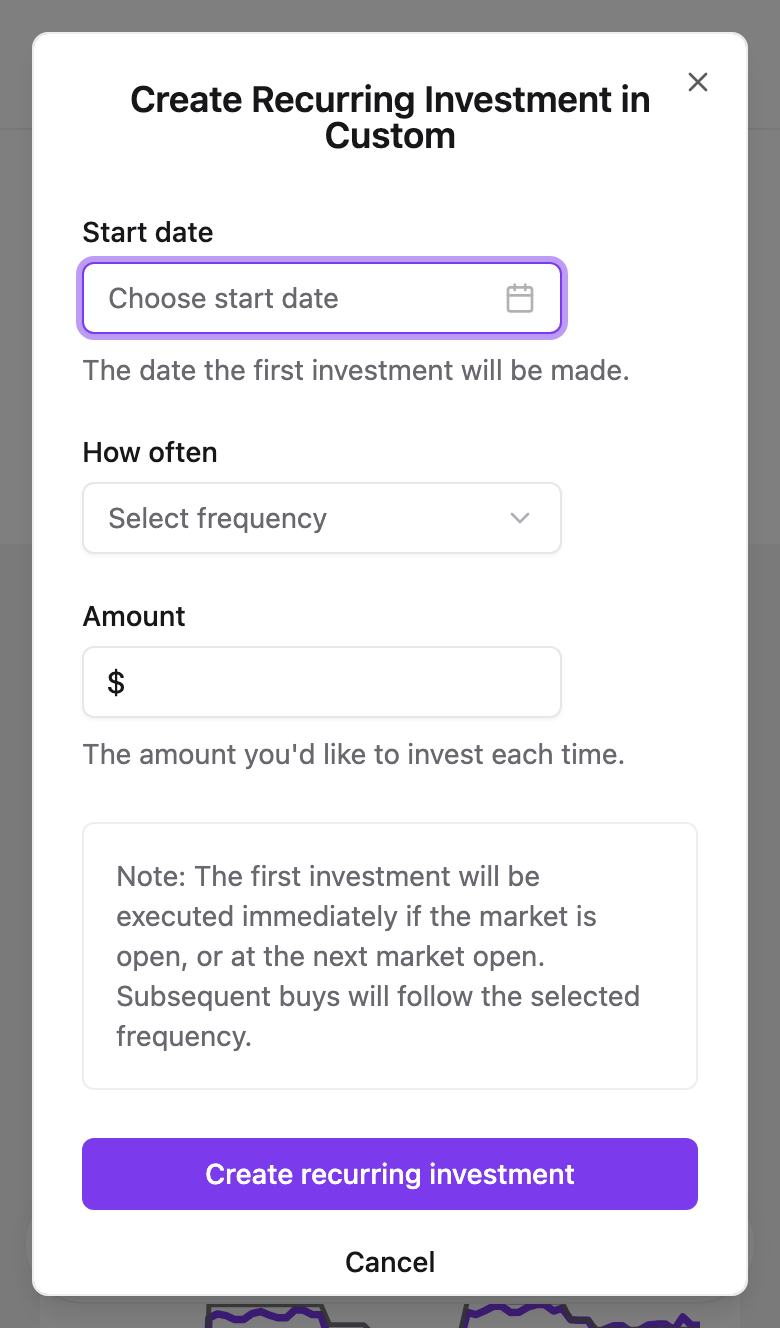
Recurring buy in the action menu sets an amount, a start date, and how often. Each run appears under Scheduled Orders and executes at the market open on its day. The same dialog cancels it later.
Common problems
Preview keeps loading. Alpaca's price feed can be slow just after the open. Close and try again in a minute.
"Custom funds require Pro". Investing in a custom fund is a Pro feature. Filtered funds work on every plan.
The withdraw amount is capped below the fund value. The cap is the current market value minus the $0.01 per-order buffer. Use the full withdrawal from the menu to close a fund completely.
- Previous
- The filtered fund preview